
Author
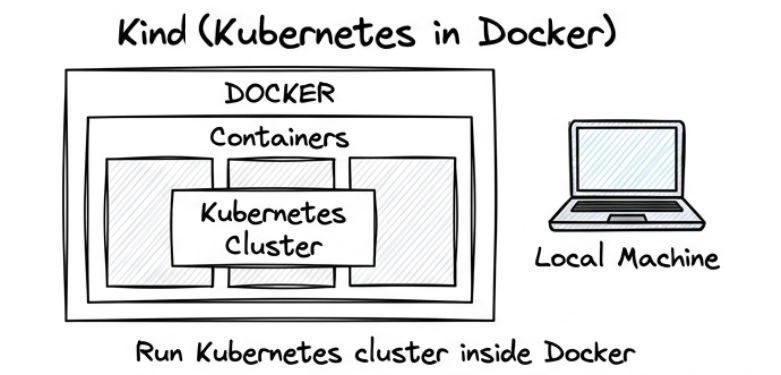
Kind (Kubernetes IN Docker) is a lightweight tool that allows you to run Kubernetes clusters using Docker containers, making it ideal for local development, testing, and automation.
? In simple terms: Kind lets you run a full Kubernetes cluster inside Docker directly on your local machine.
It is widely used by developers to test deployments, validate configurations, and simulate production-like environments locally.
Kind is an open-source tool designed to run Kubernetes clusters inside Docker containers.
It is commonly used for:
Kind is popular among developers because it is fast, lightweight, and easy to use, especially compared to VM-based solutions.
Key Benefits
? Kind provides a simple, efficient, and production-like environment for developing and testing Kubernetes applications locally.
Kind (Kubernetes IN Docker) is a tool used to create a local Kubernetes cluster using Docker containers.
It allows you to run a Kubernetes cluster on your local machine easily.
kind create cluster --name my-cluster
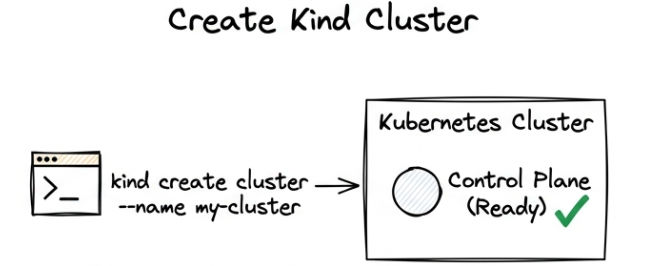
? This command creates a new Kubernetes cluster inside Docker.
kubectl get nodes
? The node should be in Ready state.
Kind does not automatically use local Docker images, so you must load them manually into the cluster.
Build Docker Image
This command creates a Docker image from your application code.
docker build -t my-app:latest .v
? It packages your application into a runnable image named my-app:latest.
Load Image into Kind
This command makes your local Docker image available inside the Kind cluster.
kind load docker-image my-app:latest --name my-cluster
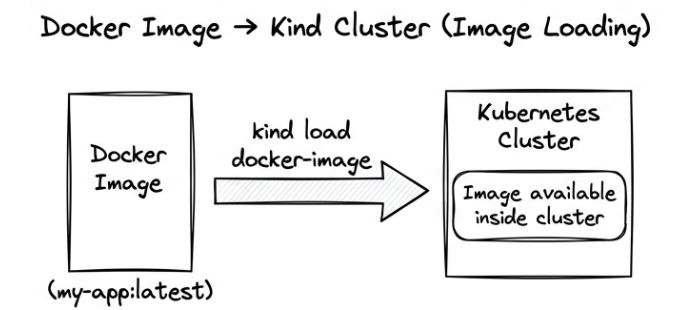
? It imports the image into Kubernetes so pods can use it for deployment.
A Deployment YAML is used to define how your application should run in Kubernetes.
It tells Kubernetes:
Example (deployment.yaml)
apiVersion: apps/v1
kind: Deployment
metadata:
  name: my-app
spec:
  replicas: 2
  selector:
    matchLabels:
      app: my-app
  template:
    metadata:
      labels:
        app: my-app
    spec:
      containers:
      - name: my-app
        image: my-app:latest
        ports:
        - containerPort: 80
Here,
replicas: 2 → Runs 2 copies of your applicationimage: my-app:latest → Uses your Docker imageselector → Connects deployment with pods using labelscontainerPort: 80 → Exposes application inside container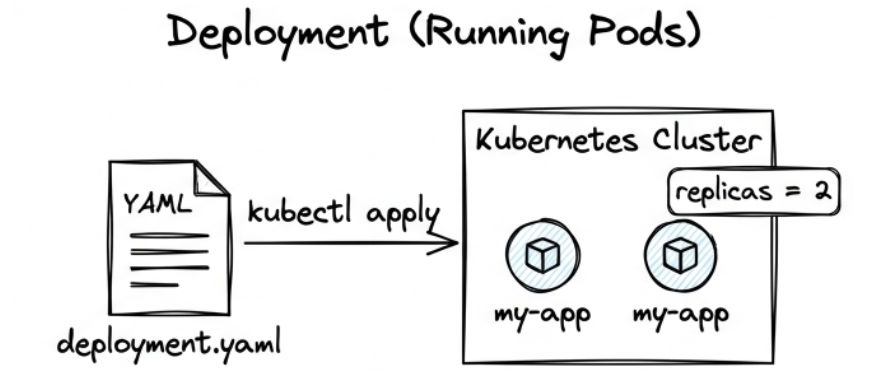
? Deployment YAML defines how your application runs, scales, and is managed inside Kubernetes.
kubectl apply -f deployment.yaml
? This command creates the Deployment and starts your application inside the Kubernetes cluster.
Verify Deployment
kubectl get pods
? This checks whether pods are created and running.
To access your application outside the cluster, you expose it using a Kubernetes Service.
Create Service
kubectl expose deployment my-app --type=NodePort --port=80
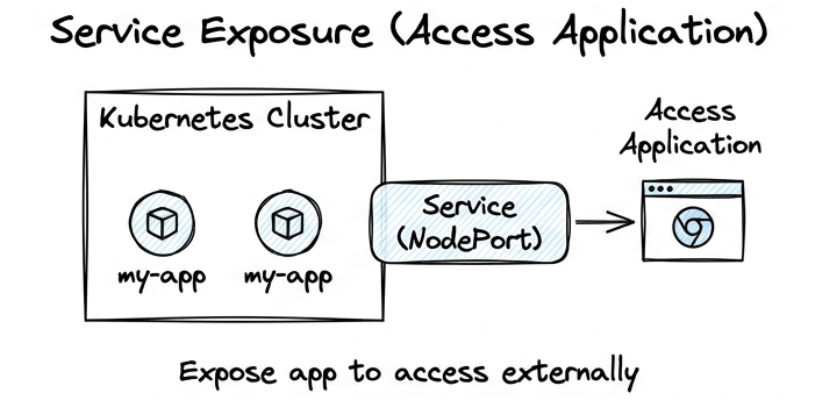
? This exposes your deployment on a NodePort so it can be accessed externally.
Check Service
kubectl get services
? This shows the service details and the assigned NodePort.
Access Application
kubectl port-forward service/my-app 8080:80
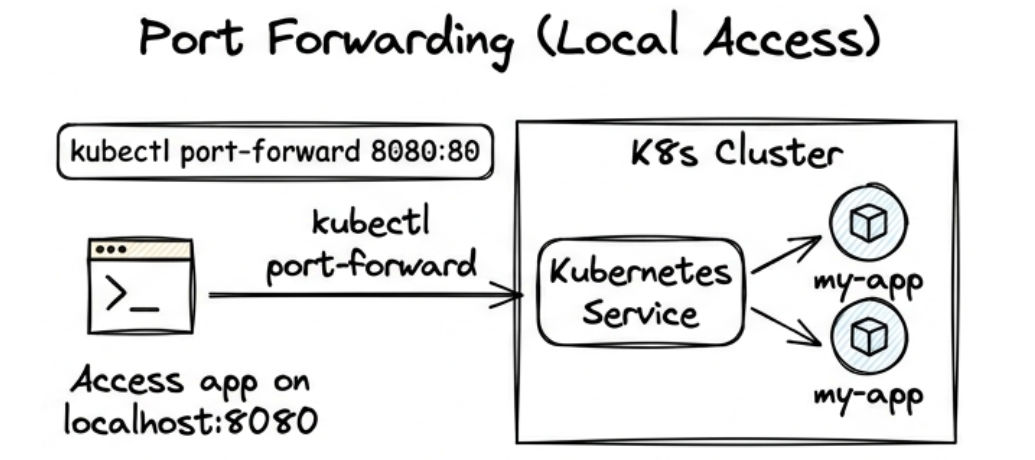
? This forwards traffic from local machine to the Kubernetes service.
Debugging helps you find and fix issues in your Kubernetes application.
Check Pods
kubectl get pods
? Shows all pods and their current status (Running, Pending, Error).
View Logs
kubectl logs <pod-name>
? Shows application logs inside the pod to identify runtime issues.
Describe Resource
kubectl describe pod <pod-name>
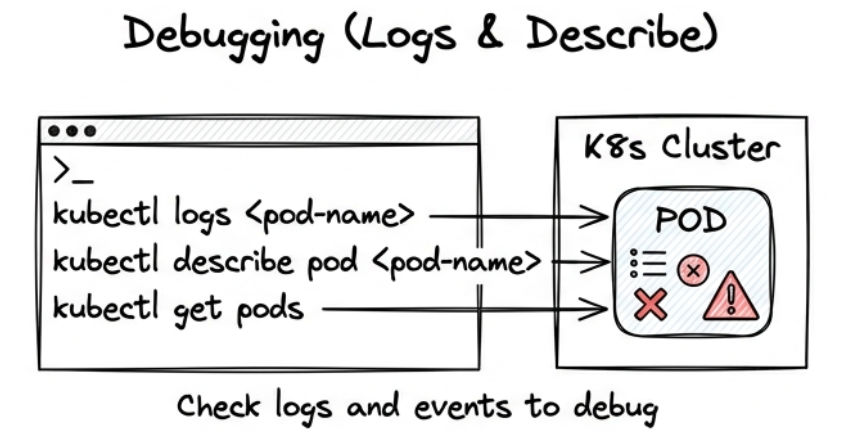
? Gives detailed information about the pod (events, errors, scheduling issues).
Kind is used to run a local Kubernetes cluster using Docker, which helps you easily run, test, and debug applications.
kind create cluster → create a Kubernetes clusterkind load docker-image → load local Docker image into clusterkubectl apply → deploy applicationkubectl expose → expose application as a servicekubectl logs / describe → debug issuesKind is useful for simulating a real Kubernetes environment on your local machine.
